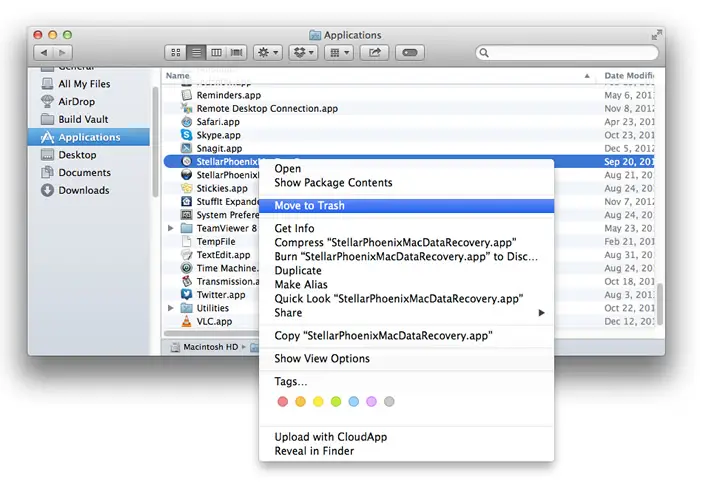
Micromsap Quick Clean — Complete Removal Guide
Follow the step-by-step instructions below to safely and completely remove Micromsap Quick Clean Software from your system.
Proper removal ensures all temporary files, background cleaning services, cache data, and system optimization components are fully cleared from your computer.
Windows Standard Removal
- Click the Start Menu and open Settings
- Go to Apps → Installed Apps
- Search for Micromsap Quick Clean
- Select Uninstall
- Confirm and allow the removal process to complete
Tip: Close all running applications before starting the uninstall process.
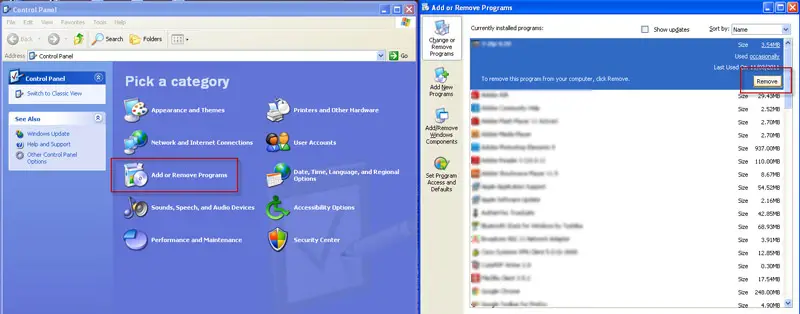
Manual Cleanup (Optional)
- Open File Explorer
- Navigate to Program Files
- Locate the Micromsap Quick Clean folder
- Delete remaining files if present
- Empty the Recycle Bin
Recommended if you plan to reinstall a fresh version.
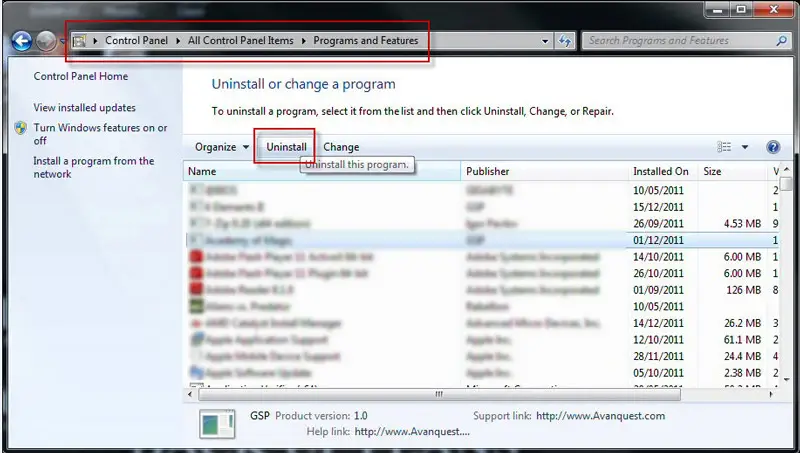
Advanced Reset Option
- Open Micromsap Quick Clean
- Go to Settings
- Select Reset Application Data
- Confirm reset operation
- Restart your computer
Use this option if you are experiencing performance or software conflicts.